
Explore an AI draft from the menu you already have.
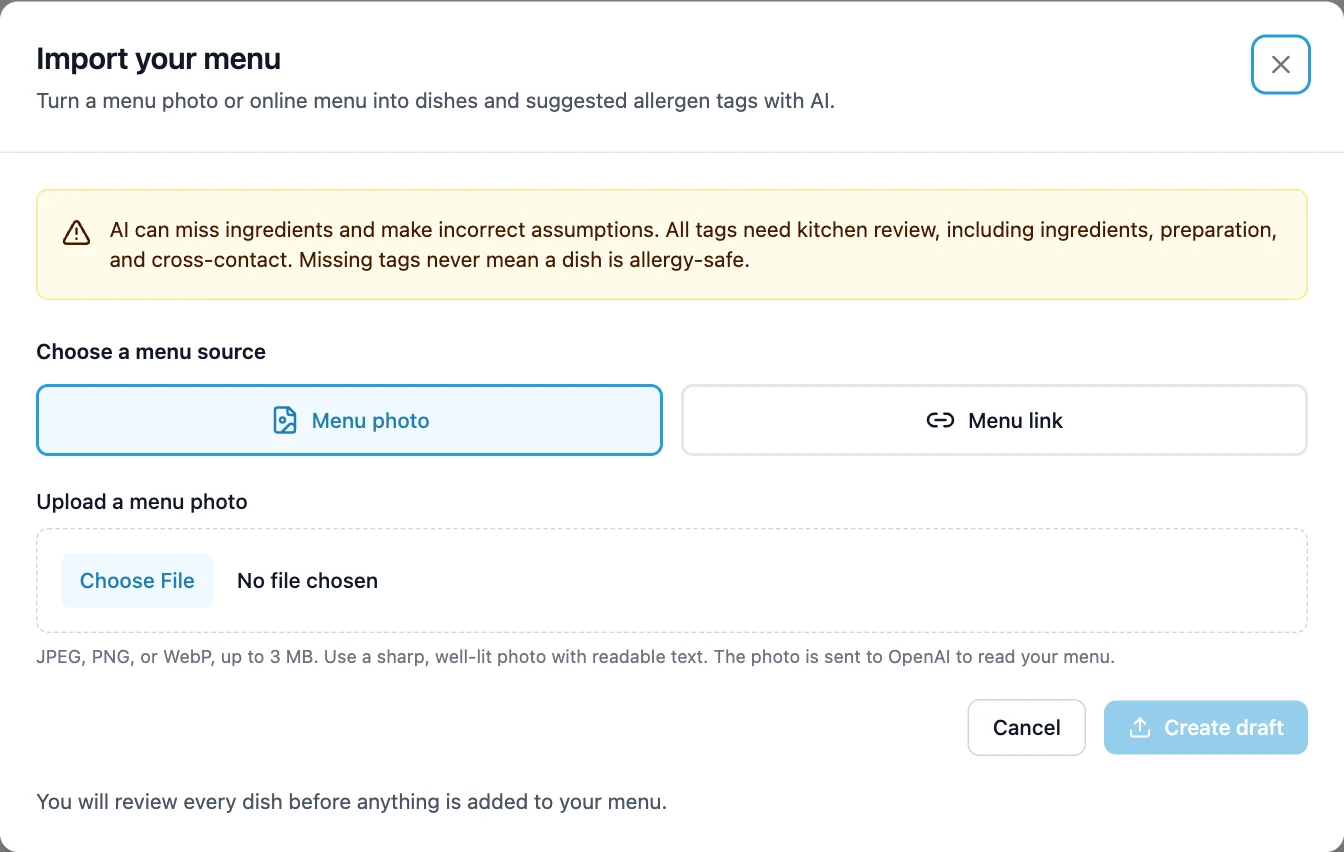
A printed menu, a menu image, or an online menu can be the starting point. In the AI-assisted import preview, you open Import menu inside My Menus and upload a readable photo or paste a public HTTPS menu link. The preview creates an editable draft of dish names, descriptions, categories, listed ingredients, prices, and suggested allergen contents. Your team can spend its attention checking the draft against recipes instead of starting every dish record from an empty form.
- Upload a JPEG, PNG, or WebP photo up to 3 MB.
- Import from a readable public menu webpage or a supported menu image link.
- Use a photo or screenshot for PDF menus and pages that require sign-in or interactive loading.
- Split menus larger than 100 dishes into smaller sections.
See why an allergen was suggested.
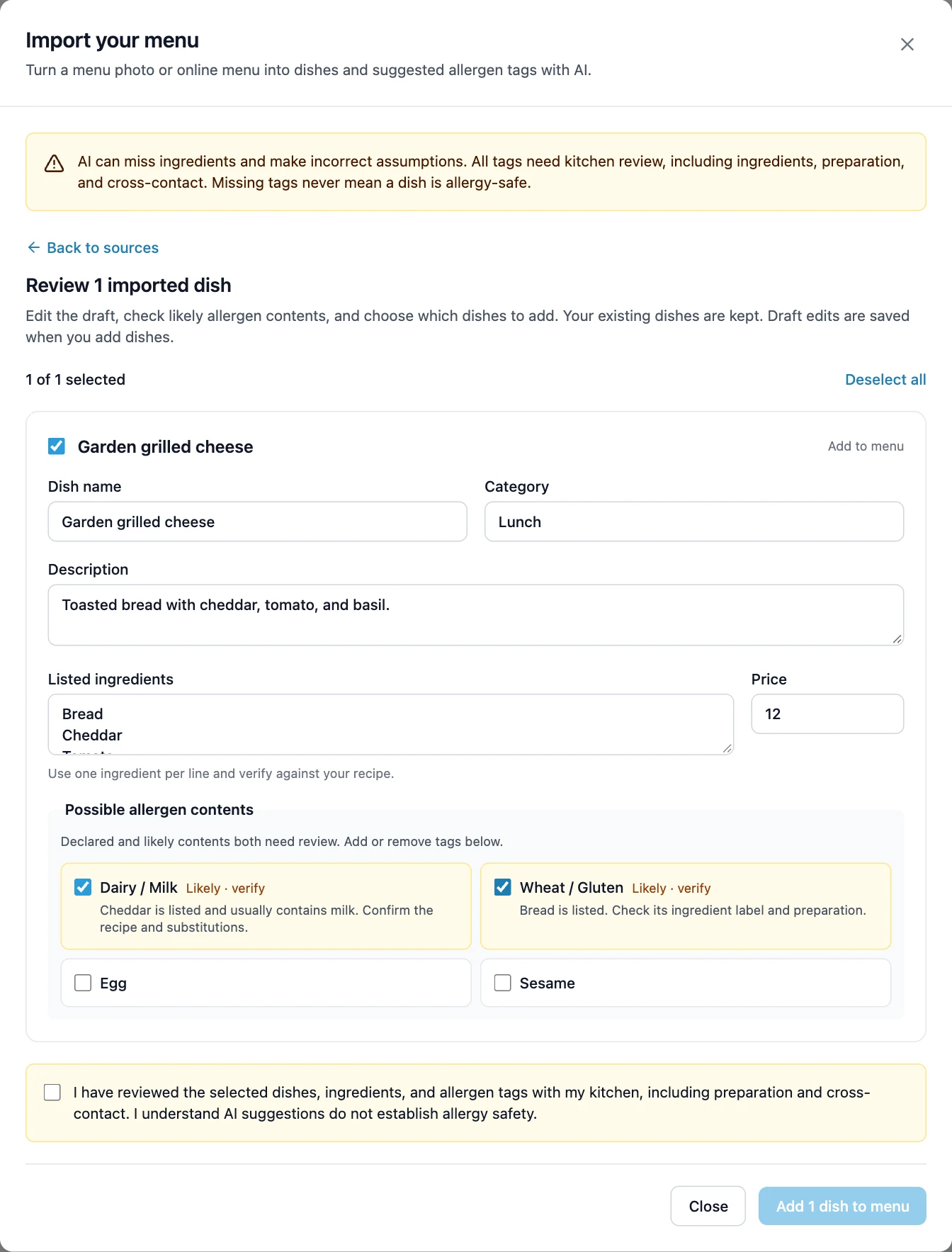
The AI allergen tool preview distinguishes information declared in the source from likely contents inferred from an ingredient or dish. A cheddar sandwich, for example, may suggest milk because cheddar usually contains milk. The review screen shows the evidence beside each suggestion. Your kitchen should check the actual bread, cheese, sauces, substitutions, and preparation before accepting that information. A short menu description cannot reveal a complete recipe or a shared fryer.
- Review declared and inferred allergen suggestions separately.
- Edit dish fields, correct ingredients, and add or remove suggested tags.
- Exclude dishes you are not ready to add.
- Confirm kitchen review before adding the selected dishes to your menu.
Build a useful dish record after the import.
The import preview gives you a draft to review. The dish editor gives you a place to maintain restaurant-provided information after that review: names, descriptions, images, ingredients, allergen status, possible modifications, and cross-contact notes. Work through each relevant allergen with the people who know the recipe and station. If a question cannot be answered yet, treat it as unknown and investigate it before making an absence claim.
Replace the separate matrix with a guest-facing menu.
A spreadsheet matrix can help a team record information, but guests still need to connect its rows and columns to the dishes they want to order. MyMeal keeps the dish and its allergy information together. Guests select their allergies, browse the menu, and open the details supplied by your restaurant. The public menu runs in a browser and does not require a guest account. Dish images, categories, and your restaurant logo keep the experience connected to your menu.
Share your reviewed menu by link or QR code.
Preview the public menu before sharing it. Check category order, dish details, allergy selections, and the instructions guests see. Then copy the public link or download a QR code from the sharing tools. Use that address on your restaurant website and printed materials. Editing content behind the same address lets you maintain the digital menu without replacing every printed code. Restaurant-name or menu-address changes need a separate link check.
Keep kitchen judgment in the workflow.
AI can miss an ingredient, read text incorrectly, or infer a conventional recipe that differs from yours. The importer does not determine that a dish is allergen-free, assign safe or modifiable statuses, or assess cross-contact. Missing tags remain unknown. Your kitchen verifies the ingredients and preparation; your team maintains the information; guests still discuss their needs with staff. Use the tool to prepare a reviewable draft and the digital menu to communicate what your restaurant has checked.
Frequently asked questions
Can AI create an allergy menu from a photo?
The AI-assisted import preview reads a supported menu photo and drafts dishes with suggested allergens for review. This feature is not enabled on the live platform yet. It can only work from the information available in the image and its inferences. Your kitchen must verify the actual recipes, ingredient labels, preparation, and cross-contact before relying on the information.
Does the AI import publish dishes automatically?
In the preview workflow, you review an editable draft, choose which dishes to add, and confirm kitchen review before the selection is added. Existing dishes are preserved. Adding a reviewed import is a real menu change, so check your selection carefully before confirming.
Can I build the menu manually?
Yes. You can create and edit dishes directly in the menu editor. AI-assisted import is a preview of an optional starting point for an existing menu; your team can maintain dish and allergen information through the editor.
Will a missing allergen tag mean a dish is safe?
No. Missing information is unknown. The importer does not create an allergen-free status from a missing tag, and menu filtering excludes dishes with unknown allergy information for the selected allergy. A restaurant must still review its information and confirm a guest’s requirements.
Can I import a PDF menu or a website that needs JavaScript?
Use a clear photo or screenshot for a PDF menu, a sign-in page, or a menu that requires interactive loading. The preview’s direct imports support readable public webpages and JPEG, PNG, or WebP image links. Check the imported draft for omissions and unreadable text.
Explore the guest experience with our interactive sample menu. It uses illustrative content. You can also browse the restaurant allergy menu showcase.